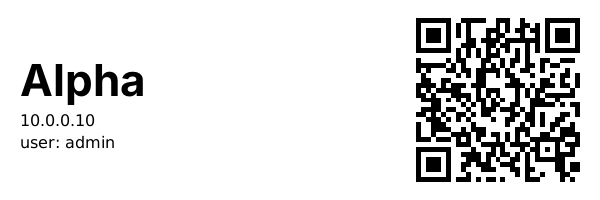
Stick a QR code on each network cable in the rack. Point an iPhone at it, tap the banner, and land in an SSH session on that machine.
How it works
The chain has four links. A QR code holds a shortcuts:// URL carrying the server’s name. The Shortcuts app runs a single shortcut called srv. Secure ShellFish opens a terminal on the matching server. The session starts with credentials already stored in ShellFish.
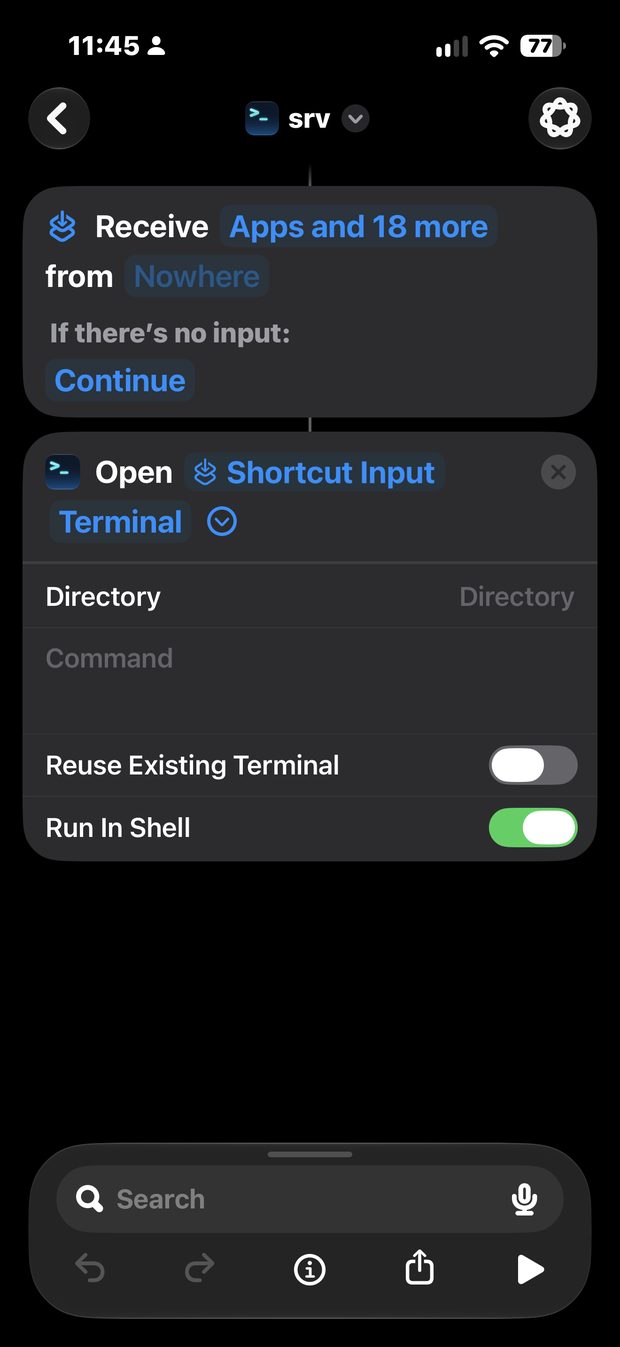
The key design choice is that one shortcut handles every host. The server name travels in the QR code as Shortcut Input, so adding a machine later means adding it in ShellFish and printing a label. The shortcut itself never changes.
What you need
- Secure ShellFish on the iPhone, with each server configured and working
- Shortcuts, built into iOS
- A Mac or Linux box with
qrencode(brew install qrencode) or Python with theqrcodepackage - A label printer, or sticker sheets and a regular printer
This was built after Termius turned out not to support it. Termius treats an ssh:// link as a new host definition, so scanning opens a prefilled add-host form rather than connecting to the saved entry, and its old Siri Shortcuts action no longer appears in current versions. ShellFish exposes a proper Shortcuts action, which is what makes the whole thing work.
1. Add the servers in Secure ShellFish
Open Secure ShellFish and add each machine: name, hostname or IP, port, username, and a key or password. Connect to each one from inside the app at least once to confirm it works and to accept the host key.
Naming matters more than it looks. The server name becomes the payload in every QR code. Keep names single-word, since spaces have to be URL-encoded as
%20. Capitalization must match exactly between ShellFish and the QR code, and renaming a server later breaks its printed label.
| Server | Address |
|---|---|
| Alpha | admin@10.0.0.10 |
| Bravo | admin@10.0.0.11 |
| Charlie | ubuntu@10.0.0.12 |
| Delta | admin@10.0.0.13 |
2. Build the srv shortcut
One shortcut serves every host. Build it once.
Create the action
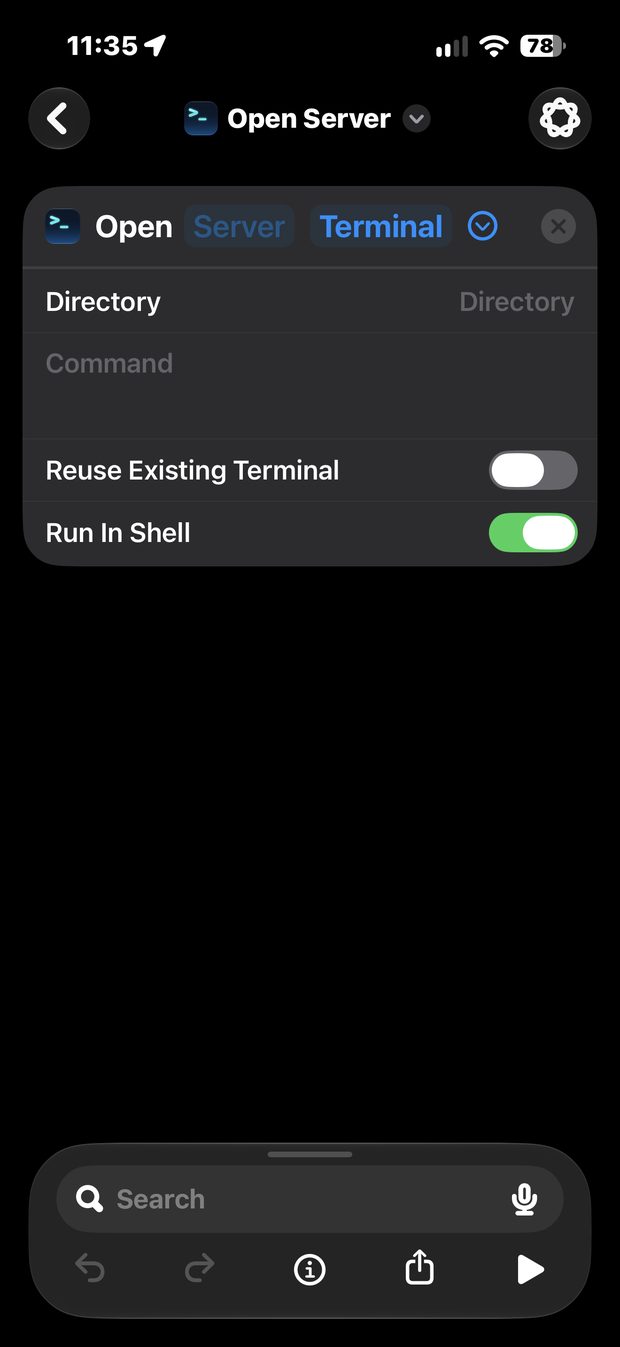
Open Shortcuts, tap + for a new shortcut, tap Add Action, and search for Secure ShellFish. Choose Open Server Terminal. It starts out with an empty Server field and everything else at defaults.
Check that your servers are visible
Tap the Server field. You should see the servers you configured in ShellFish. If this list is empty, go back to step 1 — the action can only see servers the app already knows about.
This picker is a dead end for our purposes, though. Selecting a server here hard-codes it, which would mean one shortcut per machine.
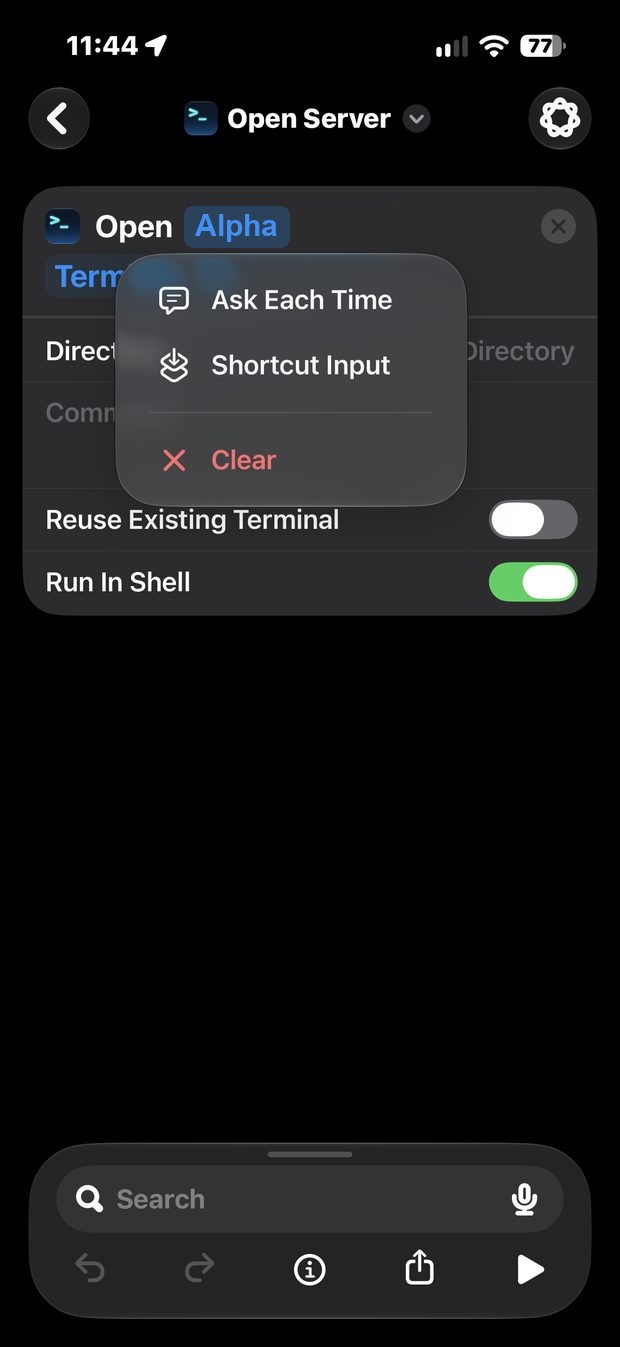
The important bit: long-press for the variable
Long-press the Server token rather than tapping it. A different menu appears, offering Shortcut Input.
Name it and finish
Shortcuts adds a Receive block at the top automatically. Rename the shortcut to srv via the chevron next to its name — short and space-free, because it goes into every label’s URL.
3. Test the URL before generating anything
Open Safari on the iPhone and type the URL straight into the address bar:
shortcuts://run-shortcut?name=srv&input=text&text=AlphaSafari asks permission to open Shortcuts the first time. Allow it. ShellFish should open with a live session.
Test a second host too. If something is silently falling back to a cached server instead of reading the input, only a second host exposes it:
shortcuts://run-shortcut?name=srv&input=text&text=Bravo| Part | Meaning |
|---|---|
name=srv | The shortcut to run, URL-encoded (a space becomes %20) |
input=text | Tells Shortcuts the input is a plain string |
text=Alpha | The ShellFish server name, matched exactly |
If Safari reports that the file doesn’t exist, the shortcut name doesn’t match. Check it against the tile in the Shortcuts list, including capitalization and any trailing space.
4. Generate the QR codes
One at a time
qrencode -o Alpha.png -s 10 -m 2 -l Q \
  "shortcuts://run-shortcut?name=srv&input=text&text=Alpha"
Quote the whole URL, otherwise the shell treats & as a background operator. Use -t SVG -o Alpha.svg for vector output. The flags: -s 10 sets module size in pixels, -m 2 adds a quiet margin, -l Q sets error correction to about 25%.
A batch from a list
Put one server name per line in hosts.txt, then:
while read name; do
  qrencode -t SVG -o "$name.svg" -s 10 -m 2 -l Q \
    "shortcuts://run-shortcut?name=srv&input=text&text=$name"
done < hosts.txt
Straight from a ShellFish CSV export
ShellFish exports the whole server list as CSV, which makes a clean source of truth. The script below reads that export, writes a PNG and an SVG per host, and builds a printable sheet pairing each code with its hostname and user@ip.
Workflow when the rack changes: export the CSV from ShellFish, rerun the script, print the new labels.
The script
It expects the columns ShellFish writes (Name, Address, Port, User) and needs pip install "qrcode[pil]". Drop the CSV next to it as ShellFish_Servers.csv and run it; everything lands in out/.
#!/usr/bin/env python3
"""Generate shortcuts:// QR codes from a ShellFish CSV export."""

import csv
import html
import os
import urllib.parse

import qrcode
import qrcode.image.svg

CSV_PATH = "ShellFish_Servers.csv"
OUT = "out"
SHORTCUT = "srv"

os.makedirs(f"{OUT}/qr", exist_ok=True)

rows = []
with open(CSV_PATH, newline="") as fh:
    for row in csv.DictReader(fh):
        name = row["Name"].strip()
        if not name:
            continue
        url = (
            "shortcuts://run-shortcut?name="
            + urllib.parse.quote(SHORTCUT)
            + "&input=text&text="
            + urllib.parse.quote(name)
        )
        rows.append(
            {
                "name": name,
                "addr": row["Address"].strip(),
                "port": row["Port"].strip(),
                "user": row["User"].strip(),
                "url": url,
            }
        )

for r in rows:
    # PNG for label software that wants raster
    qr = qrcode.QRCode(error_correction=qrcode.constants.ERROR_CORRECT_Q, box_size=10, border=2)
    qr.add_data(r["url"])
    qr.make(fit=True)
    qr.make_image(fill_color="black", back_color="white").save(f"{OUT}/qr/{r['name']}.png")

    # SVG for crisp printing at any size
    qr = qrcode.QRCode(error_correction=qrcode.constants.ERROR_CORRECT_Q, box_size=10, border=2)
    qr.add_data(r["url"])
    qr.make(fit=True)
    img = qr.make_image(image_factory=qrcode.image.svg.SvgPathImage)
    img.save(f"{OUT}/qr/{r['name']}.svg")

# Printable sheet
cards = "\n".join(
    f"""    <div class="label">
      <img src="qr/{html.escape(r['name'])}.png" alt="">
      <div class="meta">
        <div class="name">{html.escape(r['name'])}</div>
        <div class="addr">{html.escape(r['user'])}@{html.escape(r['addr'])}</div>
      </div>
    </div>"""
    for r in rows
)

sheet = f"""<!DOCTYPE html>
<html lang="en">
<head>
<meta charset="utf-8">
<title>ShellFish cable labels</title>
<style>
  @page {{ margin: 12mm; }}
  body {{
    font-family: -apple-system, "Helvetica Neue", Arial, sans-serif;
    background: #fff; color: #000; margin: 0; padding: 12mm;
  }}
  h1 {{ font-size: 14pt; font-weight: 600; margin: 0 0 2mm; }}
  p.note {{ font-size: 9pt; color: #555; margin: 0 0 8mm; }}
  .sheet {{ display: flex; flex-wrap: wrap; gap: 6mm; }}
  .label {{
    display: flex; align-items: center; gap: 3mm;
    border: 0.3mm solid #bbb; border-radius: 1.5mm;
    padding: 3mm; width: 62mm; box-sizing: border-box;
    page-break-inside: avoid;
  }}
  .label img {{ width: 22mm; height: 22mm; display: block; }}
  .name {{ font-size: 11pt; font-weight: 700; letter-spacing: -0.2pt; }}
  .addr {{ font-size: 8pt; color: #444; font-family: ui-monospace, Menlo, monospace; }}
</style>
</head>
<body>
  <h1>ShellFish cable labels</h1>
  <p class="note">Scan opens the "{SHORTCUT}" shortcut, which connects via Secure ShellFish.
  Requires the shortcut and the matching server entry on the scanning device.</p>
  <div class="sheet">
{cards}
  </div>
</body>
</html>
"""

with open(f"{OUT}/labels.html", "w") as fh:
    fh.write(sheet)

for r in rows:
    print(f"{r['name']:<14} {r['user']}@{r['addr']}:{r['port']}")
print(f"\n{len(rows)} labels written to {OUT}/qr/")
5. Print and apply the labels
Label stock
This setup uses MakeID WP25-75(107) cartridges: 25 × 75 mm labels, 104 per roll, on a thermal printer.
Sizing the code for thermal print
MakeID printers use a 203 dpi head, so one printer dot is 0.125 mm. The goal is a whole number of dots per QR module. At a fractional ratio the printer rounds unevenly and modules come out different widths, which is the usual reason small thermal QR codes scan badly.
The arithmetic for a 60-character URL like ours:
| Error correction | Modules | Module size | Code size |
|---|---|---|---|
| M (recommended) | 33 × 33 | 0.626 mm (5 dots) | 20.6 mm |
| Q | 37 × 37 | 0.500 mm (4 dots) | 18.5 mm |
Level M wins here. Q’s extra redundancy doesn’t compensate for 20% smaller modules on a 25 mm label. If the label app offers H, avoid it — the code gains modules and each square shrinks further.
Two ways to produce them
Pre-rendered images. A variant of the script above renders a ready-to-print PNG per host at exactly 75 × 25 mm, hostname and address on the left, code on the right. Import into the MakeID app, and confirm the printed code measures about 20.6 mm rather than being rescaled to fit.
Let the app build the code. Paste the URL into MakeID’s QR field and let it generate. This sidesteps scaling entirely, since the app sizes the code to its own print grid.
Before committing the roll
Print one and scan it. Printed codes behave differently from screens — ink density, contrast, and label finish all matter.
Flag-style beats wrap-around. A tag sticking out flat from the cable gives the camera a flat surface. A code wrapped around a cable curves, and scanning gets unreliable fast. At 75 mm long, folding the label back on itself around the cable leaves a good flag with the code on one face.
Keep the hostname in plain text. If the label wears, or someone without the shortcut is in the rack, the label still says what the machine is.
URL reference
For typing or pasting into a label app that generates its own QR codes:
shortcuts://run-shortcut?name=srv&input=text&text=Alpha
shortcuts://run-shortcut?name=srv&input=text&text=Bravo
shortcuts://run-shortcut?name=srv&input=text&text=Charlie
shortcuts://run-shortcut?name=srv&input=text&text=Delta
Beware autocorrect. These are case-sensitive end to end. A text field that capitalizes
shortcutsor autocorrects a hostname produces a code that fails silently. Paste rather than type wherever possible, and scan the app’s preview before printing.
Troubleshooting
| Symptom | Cause and fix |
|---|---|
| Shortcuts opens and says the file doesn’t exist | The shortcut name in the URL doesn’t match. Compare against the tile in the Shortcuts list, including case and trailing spaces. Spaces must be %20. |
| Camera shows no banner for the code | iOS is cautious with non-web URL schemes. Try the Code Scanner in Control Center, which is more permissive. |
| The wrong host opens | The text= value doesn’t match a ShellFish server name, or two servers have similar names. |
| The shortcut prompts for a server | Shortcut Input arrived empty, usually a damaged or misprinted code. The prompt is a harmless fallback — pick the server manually. |
| ShellFish opens with no session | The connection failed rather than the shortcut. Try connecting from inside ShellFish to see the actual error. |
| Nothing happens on someone else’s phone | Expected. They need both ShellFish with the servers configured and the srv shortcut. |
| Extra confirmation tap on every scan | Ask Before Running is still on in the shortcut’s info panel. |
Limitations and maintenance
The labels are device-specific. They only work on a phone that has Secure ShellFish with the servers configured and the srv shortcut installed. A colleague scanning the same label gets nothing. To share the setup, export the shortcut from the Shortcuts app and have them import it — but they still need their own ShellFish servers with matching names.
No credentials are in the QR code. The code holds only a server name. Everything sensitive stays in ShellFish. A photographed label gives away a hostname, nothing more.
Renaming a server breaks its label. The name is the link between the code and ShellFish. If a machine gets renamed, reprint.
Adding a host later: add the server in Secure ShellFish and connect once, add its name to hosts.txt or re-export the CSV, rerun the generator, then print and stick. The srv shortcut is never touched again.
Why not Termius: an ssh:// link opens Termius in add-host mode even when the host already exists in the vault, and the Siri Shortcuts action it once offered no longer appears in current builds. Blink Shell is a workable alternative via its blinkshell://run?key=…&cmd=… scheme, but that puts a shared secret on every printed label.
Tested on Secure ShellFish with iOS Shortcuts and a MakeID WP25-75 thermal printer.